Battery Anti-Theft Dashboard · ⬆ índice
Battery Anti-Theft Dashboard
Overview
The Battery Anti-Theft Dashboard is a security-focused monitoring view designed to protect battery assets from theft. It combines GPS tracking, motion/impact detection, and automated alarms to provide an end-to-end security workflow.
Key features
- Real-time GPS tracking - view device location on an interactive map
- Motion detection - accelerometer-based detection of movement, rotation, lift/tilt, vibration, and impact
- Automated alarms - instant notifications when suspicious activity is detected
- Remote control - trigger a relay/actuator remotely (when supported by the device)
- Configurable sensitivity - tune thresholds and response behavior to match your installation
Accessing the Dashboard
- Log in to AITHA Portal.
- Open Dashboards from the main menu.
- Select AntiRobo-Baterias (name may vary depending on your tenant configuration).
Main Screen
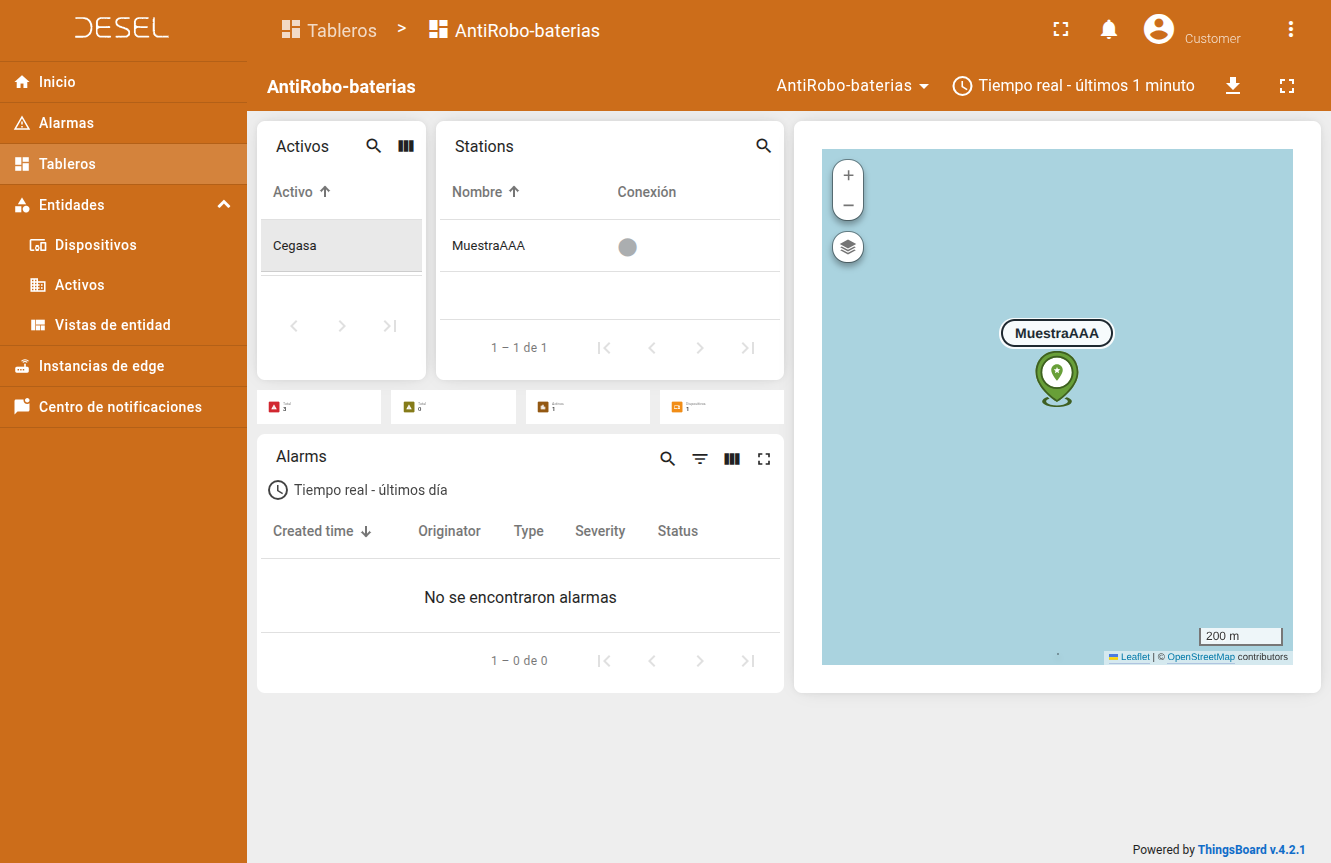
The main screen provides an overview of protected assets and active alarms.
Components
1) Interactive Map
The map shows the current (or last known) location of all your devices.
What you can do:
- Device markers - each device appears as a marker
- Status colors - typically green = online, gray = offline
- Device labels - hover/tap to see a device name
- Zoom controls - wheel/buttons to zoom in/out
- Map layers - road / satellite / hybrid (depending on tenant setup)
Suggested workflow:
- Locate devices visually.
- Click a marker to open basic device info.
- Use the map to spot unusual locations or movement patterns.
2) Assets Card
This card lists your assets (logical groupings/locations).
- Browse the assets list.
- Click an asset to select it.
- The devices list updates to show devices belonging to that asset.
3) Devices Card
This card lists devices for the currently selected asset.
- Select an asset first.
- Click a device to open its detailed view.
4) Active Alarms List
This section lists alarms currently active on your devices.
Typical fields:
- Timestamp - when the alarm was triggered
- Source - which device triggered it
- Type - motion, impact, GPS movement, etc.
- Severity - Critical / Major / Minor / Warning
- State - Unacknowledged / Acknowledged / Cleared
Actions:
- Open an alarm to see details
- Acknowledge alarms you reviewed
- Clear alarms that are resolved
Device Detail View
When you select a device, you will see the detailed monitoring view.
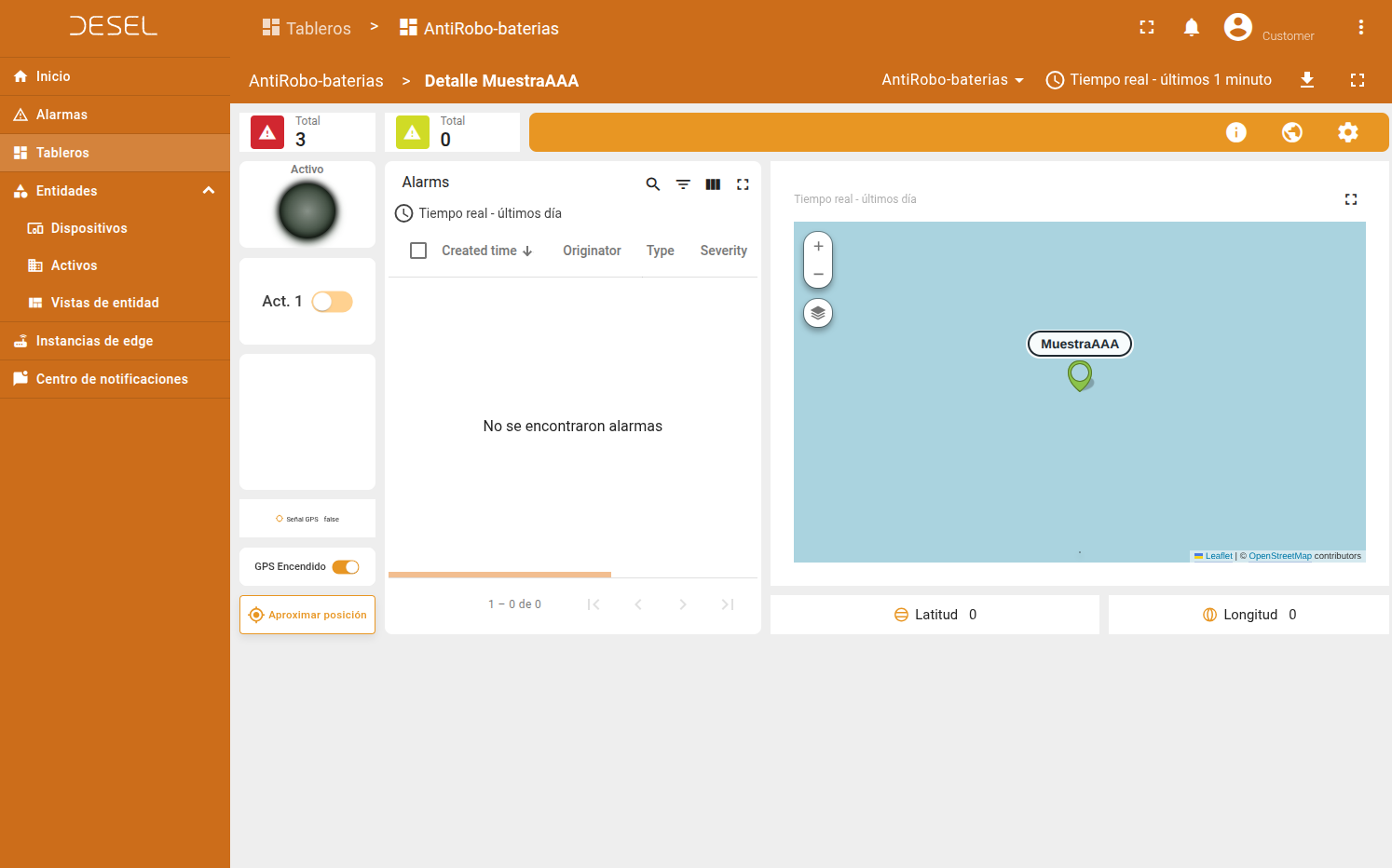
Location map
Shows the specific location of the selected device.
GPS controls
Enable/Disable GPS
- Toggle GPS tracking on or off.
- Useful to reduce power consumption when GPS is not needed.
Request approximate location (WiFi)
- Request location based on nearby WiFi networks.
- Useful when GPS is unavailable (indoors, dense urban areas).
WiFi-based location is usually less accurate than GPS, but can work indoors and may use less power.
Top bar controls
1) Info button
Shows raw telemetry coming from the device.
Common data:
- GPS - lat/lng, signal status, motion flags
- Accelerometer - accel/gyro X/Y/Z
- Detection events - movement/rotation/lift/vibration/impact flags
Use cases:
- Troubleshooting device behavior
- Validating sensor readings
- Understanding what triggered an alarm
2) Connectivity info button
Shows network connectivity details.
Common data:
- Connection state (online/offline)
- Active link (WiFi / Cellular / Ethernet)
- IP address
- Gateway
- MAC address
Use cases:
- Verifying network setup
- Checking failover behavior
3) Settings button
Access calibration and sensitivity settings.
Settings
Motion detection calibration
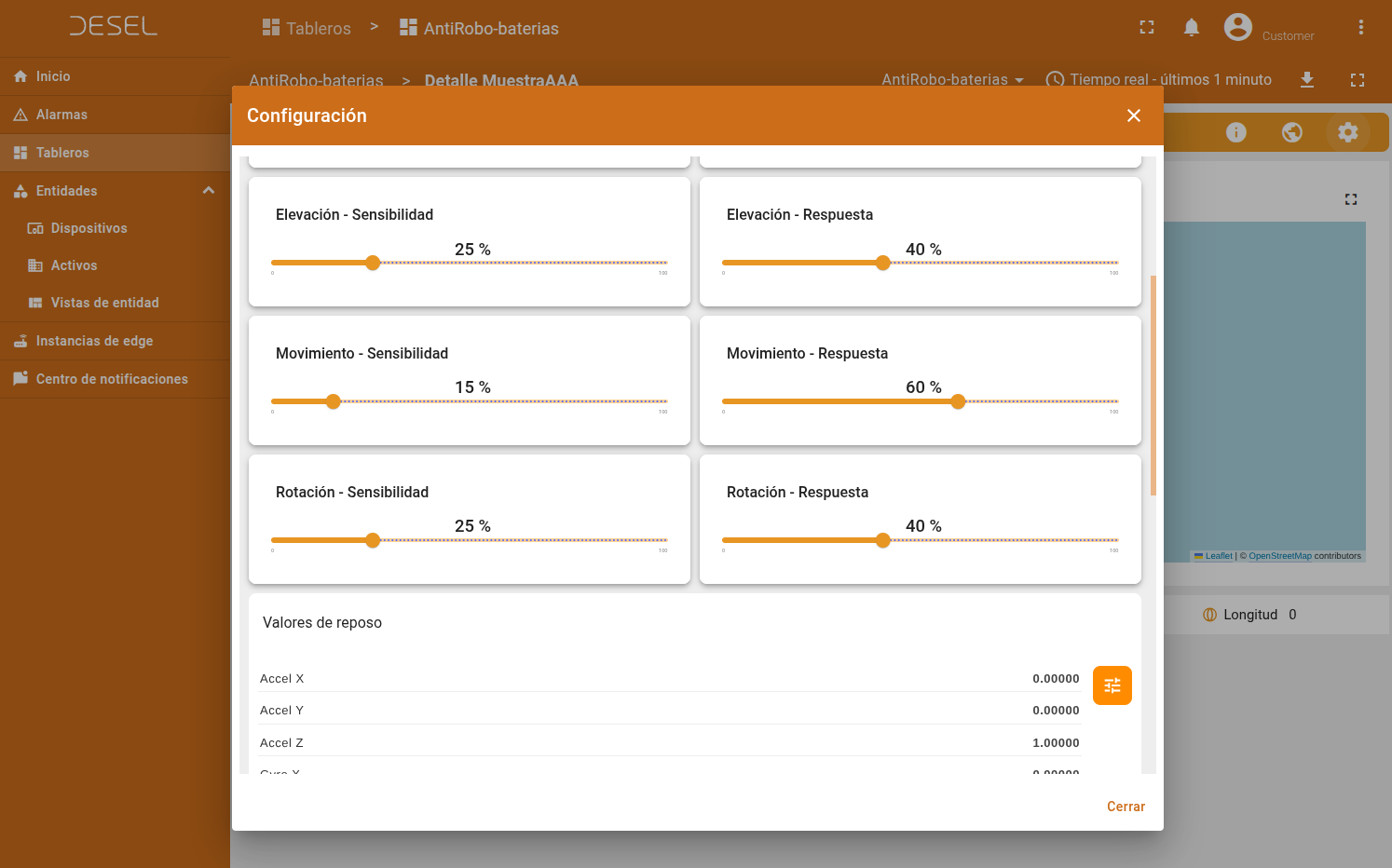
Sensitivity sliders
- Motion sensitivity - how much movement triggers detection
- Rotation sensitivity - how much rotation triggers detection
- Lift sensitivity - how much tilt/lift triggers detection
- Vibration sensitivity - how much vibration triggers detection
- Impact sensitivity - how much shock triggers detection
Response sliders
- Motion response - how fast the motion detection reacts
- Rotation response - how fast rotation detection reacts
- Lift response - how fast lift detection reacts
- Vibration response - how fast vibration detection reacts
- Impact response - how fast impact detection reacts
Sensitivity and response work together:
- Higher values = more sensitive / faster reaction
- Lower values = less sensitive / slower reaction (fewer false alarms)
Rest position values
These values represent accelerometer/gyro readings when the device is at rest in its normal position.
- Rest X/Y/Z - baseline acceleration values
- Rest Gyro X/Y/Z - baseline rotation values
Purpose:
- Detects deviations from the normal position
- Reduces false positives from environmental factors
- Should be calibrated when the device is installed
GPS movement detection
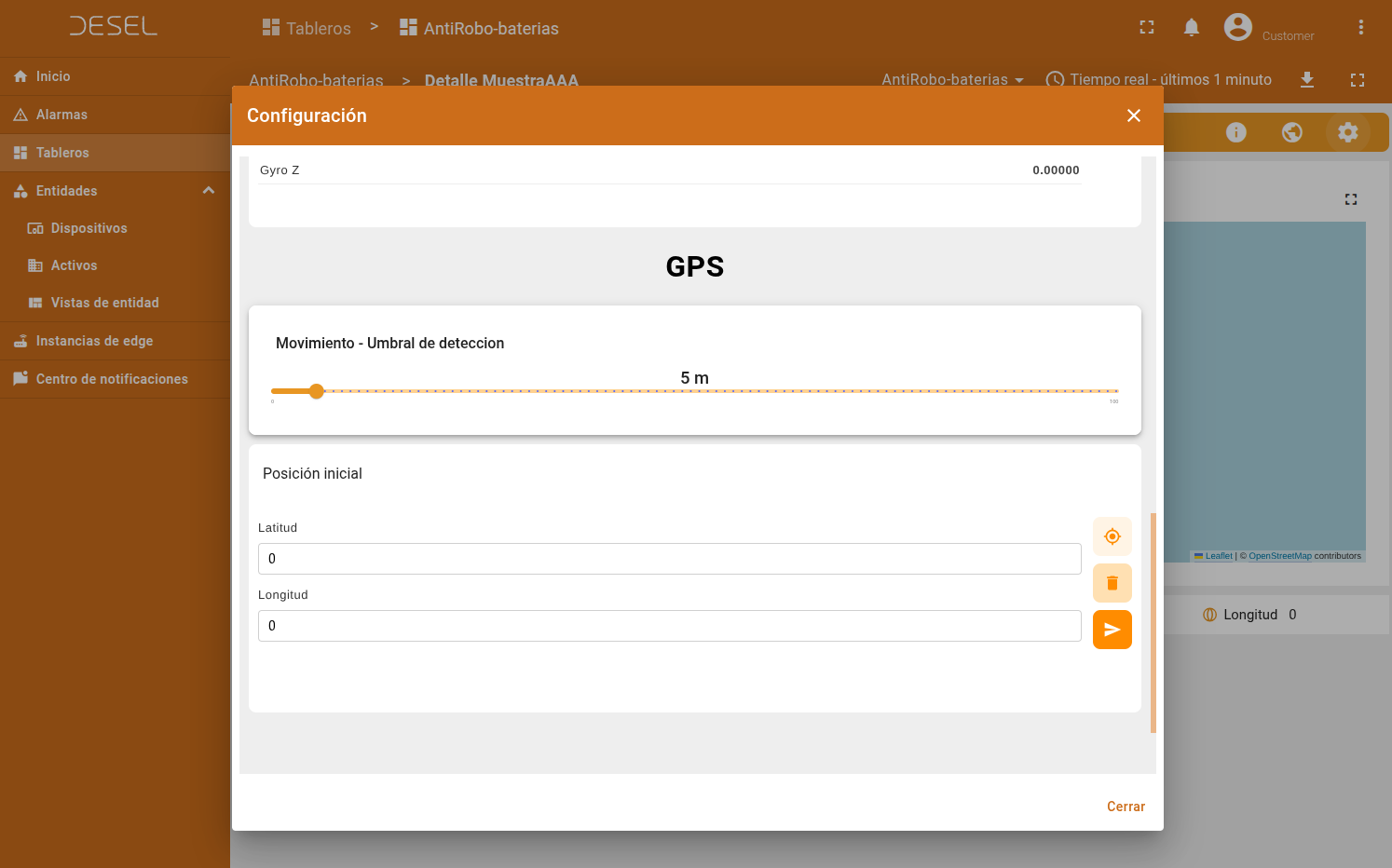
Settings
-
Initial GPS position - the expected/normal location (installation site)
- Latitude/longitude used as a reference
- Some tenants allow auto-fill from a device that currently has GPS fix
-
Movement threshold - distance (meters) that triggers a movement alarm
- Smaller values = more sensitive
- Larger values = only detects significant displacement
Example:
- Initial position: installation site (-34.603722, -58.381592)
- Threshold: 50 meters
- Alarm triggers if the device moves more than 50m away
Device alarms card
Shows alarms specifically for this device.
Recommended workflow:
- Acknowledge new alarms after you review them.
- Clear alarms only after the underlying cause is resolved.